How to Make a 3D Logo in Illustrator (And the 6-Second Alternative Designers Swi
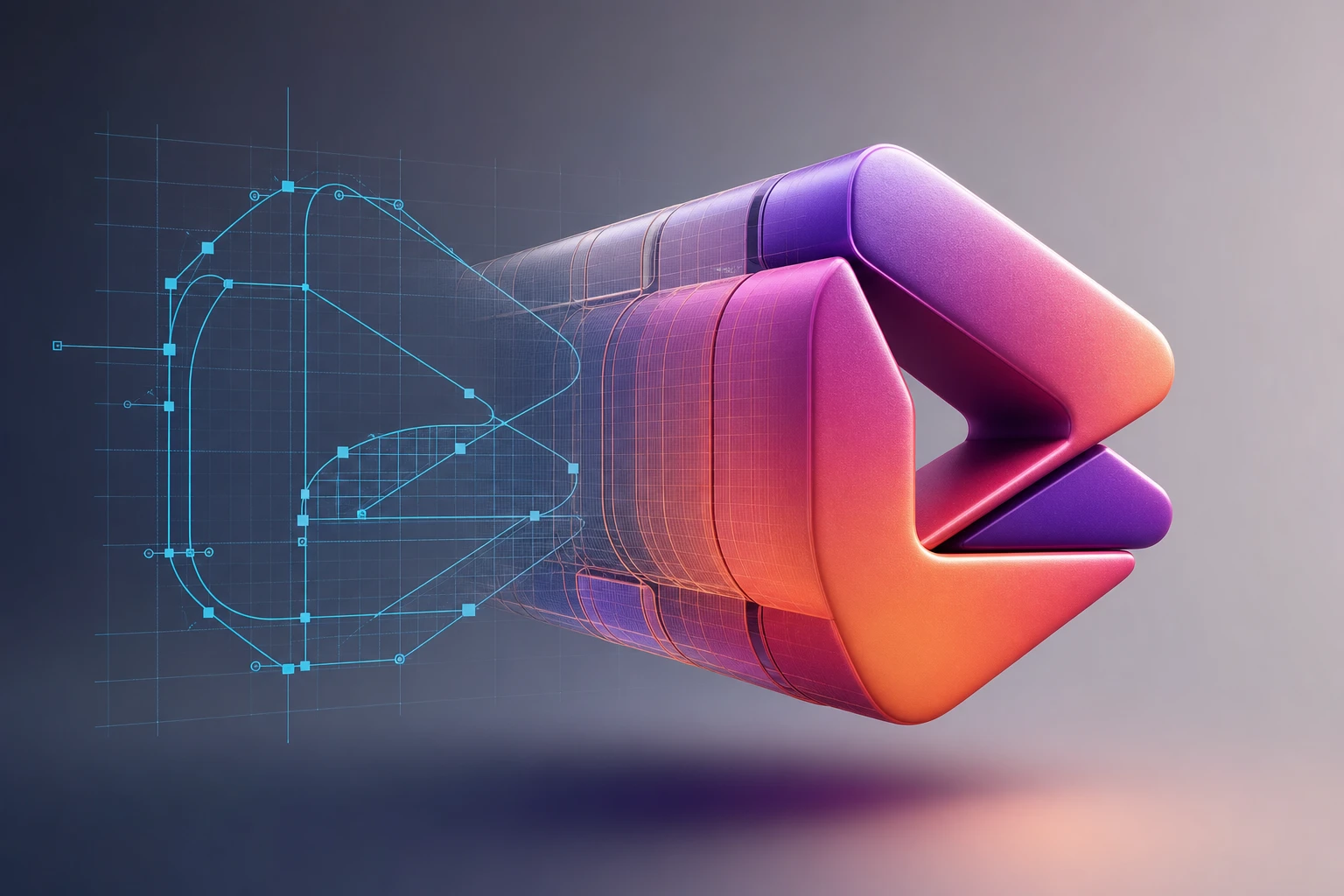
Transforming a flat, lifeless design into a stunning 3D masterpiece can instantly lift a brand's identity. A well-designed logo can help a company stand out from its competitors and create an instant connection with its target audience (source).
However, many designers hit a frustrating wall when trying to build 3D assets. The reality is that Adobe Illustrator is not a native 3D rendering app; traditionally, creating a 3D image meant you had to manually draw gradients and perspectives to make it simply look 3D (source). Fortunately, Adobe has bridged this gap. With the modern 3D and Materials panel, you can turn a flat design into stunning realistic artwork without leaving your vector workspace (source).
Whether you are designing for a corporate business or creating a custom 3D lettermark (source), here is the step-by-step process to create a 3D logo in Adobe Illustrator.
1. Prepare and Group Your 2D Design
Every great 3D logo starts with a clean 2D foundation. Begin by using simple shapes and applying transparency to build the core of your logo (source).
Before you apply any 3D effects, you must group your elements. Drag across your design with the Selection tool and choose Object > Group (source). This is a critical step. Grouped objects in a 3D graphic will cast shadows and bounce light off each other for highly realistic effects (source). If your elements are not grouped, the 3D engine will treat them as isolated pieces, ruining the illusion of a unified object.
2. Apply 3D Effects (Inflate and Revolve)
Once your logo is grouped, it’s time to add dimension.
- For a puffed, tactile look: Select all parts of your logo and navigate to Effect > 3D and Materials > Inflate (source). This tool instantly gives flat vectors a rounded, dimensional feel, perfect for modern, playful logos.
- For cylindrical or rounded objects: If your logo features circular elements (like a coffee cup, a ring, or a pot), select the object, switch to the Object tab in the 3D panel, and click Revolve (source). You can easily adjust the settings to rotate the object exactly the way you want (source).
3. Master Lighting and Ray Tracing
Dimension alone isn't enough; lighting is what transforms a basic 3D extrusion into a professional asset. Navigate to the Lighting tab within the 3D and Materials panel and adjust the sliders to position your light source, tweak the intensity, and control the softness of the shadows.
To get the most professional result, click the Render with Ray Tracing button located on the Lighting tab (source). Ray tracing simulates how light behaves in the real world. As an Adobe pro tip notes, ray tracing produces a more polished, realistic 3D effect (source).
4. Refine with Non-Destructive Editing
One of the best ways to avoid common mistakes and work faster in Illustrator is to utilize non-destructive workflows (source). Even after you have applied complex 3D effects and ray tracing, your original vector paths remain fully editable.
If a shape doesn't look quite right in 3D, you don't have to start over. Simply use the Direct Selection tool to select anchor points on your design (source). For example, you can drag an anchor point on one side of a revolved object to resize it on the fly (source). The 3D rendering will automatically update to reflect your changes.
Finalizing Your Logo
Once your 3D logo is complete, you can export it for various mediums. Whether you are printing business cards or embedding the logo image into an HTML website header, Illustrator allows you to export your 3D creations as high-resolution PNGs or even render them out as 3D asset files for further animation. By using these native tools, you can create premium, dimensional logos that command attention.
If this is the kind of work you're shipping, that's the gap we built Oven AI to close — open it the next time you hit this wall.